
Panel Guide
Inim Previdia – RS232
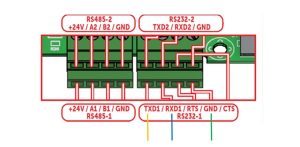
Panel Connection – RS232
|
Manufacturer |
Inim |
|
Model |
Previdia |
|
Panel Profile |
INIM-PREVIDIA-RS232-DK |
|
Panel Bus Connection |
RS232 |
|
Technical Notes |
Connect to either RS232 port on the Panel but ensure panel configuration matches If an EN54-compliant installation is required, please also follow the instructions in the DualCom Pro 2 Fire EN54 Variant Quick Guide. |
Panel Connection Information
|
Connection |
Panel |
|
RS232-T |
RXD |
|
RS232-R |
TXD |
|
RTN |
GND |
Panel Programming
- Press the ‘Home’ icon to display Standby screen
- Press the ‘Programming’ butto
- Insert the installer code (default value = 00004)
- Choose the ‘Configuration’ option
- Press the ‘Telephone’ icon
- Select the ‘PREVIDIA-C-COM’ checkbox
- Press the ‘Program’ button
- For RS232-1 or RS232-2 (depending on the port used to interface the SPT) choose the WebWay protocol
- Press the ‘Set’ button to save your settings
- Press the ‘Contacts’ button
- Select the contact you want to assign to WebWay communication and press the ‘Program’ button
- Edit the ‘Description’ of the contact
- Press the ‘Set’ button to save your settings
- Press the ‘Esc’ button
- Press the ‘Actions’ button
- Choose an existing action (‘Generic alarm’ and ‘Generic fault’ by default) or an empty one and press the ‘Program’ button
- Press the ‘Associated Contacts’ button
- Select the checkbox related to the contact assigned to WebWay communication
- Press the ‘Set’ button to save your settings
- Press the ‘Set’ button to save your settings
- Press the ‘Esc’ button
- Press the ‘Set’ button to save your settings
- Press the ‘Home’ icon to display Standby screen
Troubleshooting
- Note for ATS 2000 panels set the connection type here as PSTN. Rather than serial interface. The connection type in menu 9 needs to remain as Universal Interface.
- *Please note without 12V to the CTS connection on the serial interface the serial board will not operate.