Unable to connect:
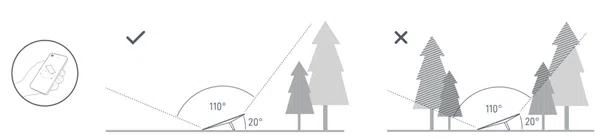
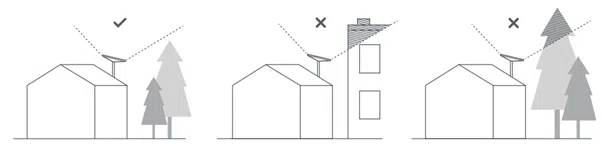
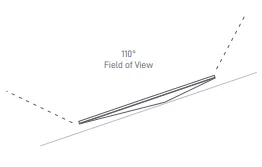
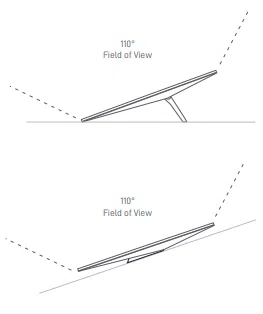
1. Ensure there is a clear line of sight to the sky with no obstructions.
2. Open the Starlink App to check for any alerts, outages, or obstructions. Follow the prompts in the app to resolve these.
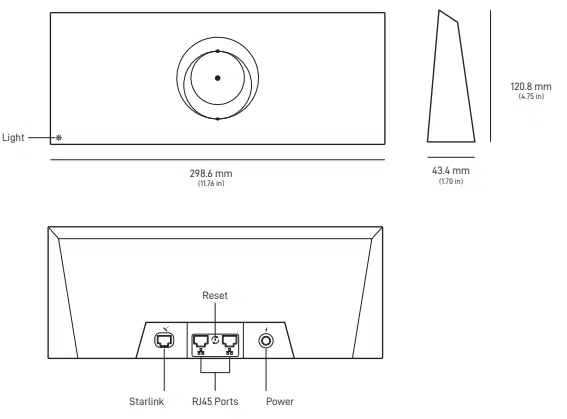
3. If you have purchased the Standard (V4) with a Gen 3 Starlink Router, check the Wi-Fi router light.
| Router Light Table (Standard (V4) with a Gen 3 Starlink Router) |
| Flashing White |
Trying to connect. The light will turn solid white when setup is complete and the router is connected to the internet, or solid red if the router cannot get a connection to the internet in 20 minutes. |
| Solid White |
Connected to internet. Will turn off after 1 hour |
| No Light |
No power to router. With good connection, the light will turn off after 1 hour. |
| Red Light |
Not connected to the internet. |
| Violet Light |
Router is in bypass mode. Will turn off after 1 hour. Factory reset required to exit bypass mode. |
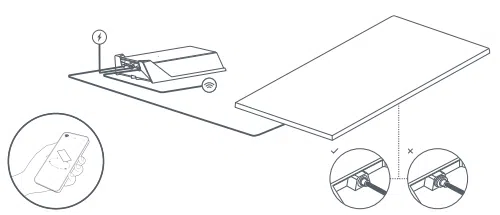
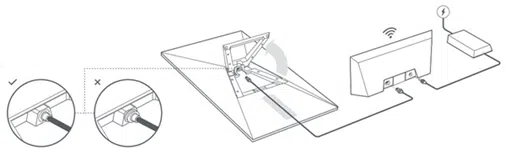
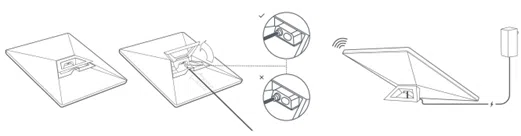
4. Make sure everything is securely plugged in and there is no damage to hardware or cables.
5. Power cycle Starlink by unplugging from the power and then plugging back in.
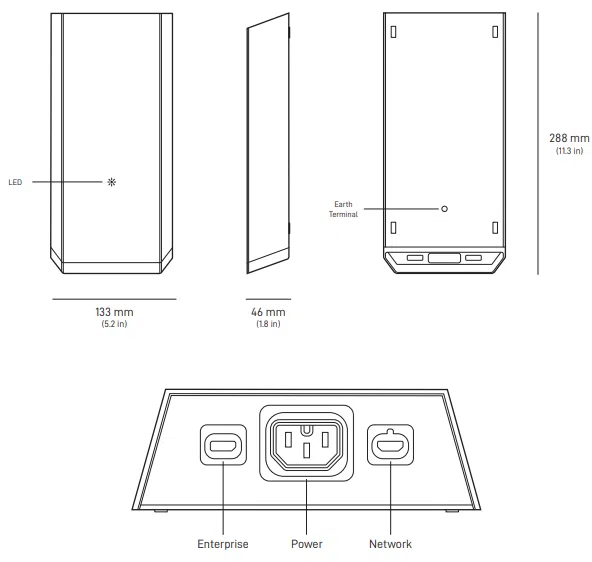
If you have purchased the Mini, check the status light on the back of your Starlink.
| Slow Blinking |
Powered on |
| No Light |
No Power to Starlink |
| Fast Blinking |
LED will blink quickly for 3 seconds while holding down the reset
button, the LED will turn off as your Starlink reboots. Only press
this to default the router. |
6. Factory reset the terminal or Starlink router by pushing the reset button. Where there is no reset button, this will require power cycling the terminal 6 times (please allow for 2 second intervals).
7. If you are experiencing further issues, contact CSL Customer Support.