

Introduction
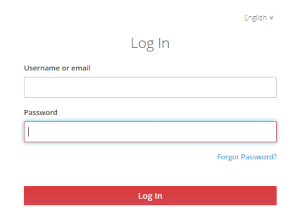
Step 1 - Login
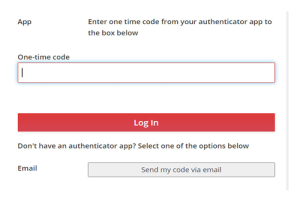
Step 2 - MFA
Step 3 - Shop
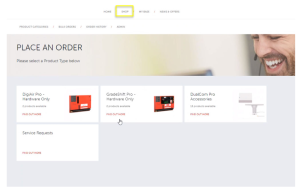
Step 4 - Select
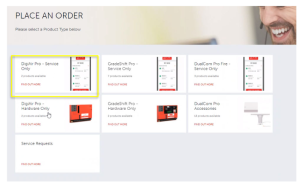
Step 5 - Add
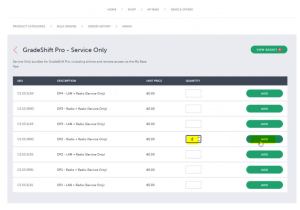
Step 6 - Checkout
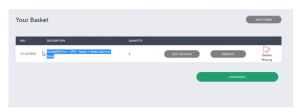
Step 7 - Addresses
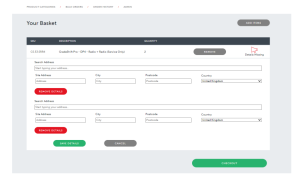
Step 8 - Search
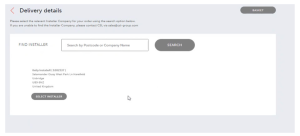
Step 9 - Review
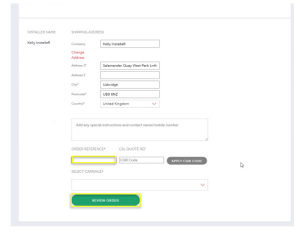
Step 10 - Summary
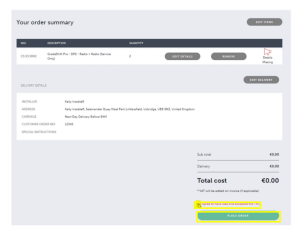
Step 11 - Place Order
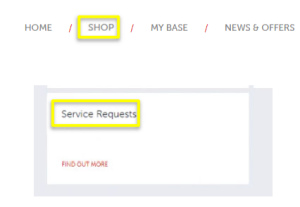
Step 12 - Service Requests
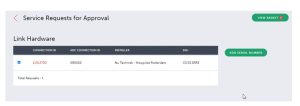
Step 13 - Link Hardware
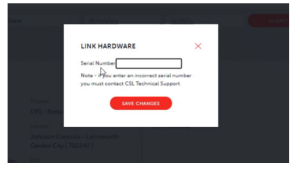
Step 14 - Serial Number
Step 15 - Success

Step 16 - Any Issues
Instructions
- Install your replacement product and then access CSL Live via a web browser to complete the process.
- Visit the My Base section > select the device you wish to replace > click on ‘Replace Hardware’ > enter the serial number of the replacement device > save.
- Please place the old, removed product into the packaging of the replacement device. This can then be placed in the supplied returns bag. Any accessories (such as aerials and leads) do not need to be returned unless specifically requested by CSL.
- The return bag has pre-paid postage, and there are several options on how to return this to us:
- Drop off at your local Post Office
- Collection from a post collection point in an office
- For multiple devices or where you cannot get to a Post Office, please email orders@csl-group.com or telephone +44 (0)1895 474460 to arrange a collection. Please ensure you provide the collection address and return number, which is marked on the returns bag.
You must ensure this faulty product is returned to CSL within 10 days of the installation. If not received, CSL reserve the right to charge for the missing device or suspend any further replacements.
Required Accessories
DualCom Pro:
| To: Radio Only | To: LAN Only | To: LAN/Radio | To: Radio/Radio | ||
| DigiAir Pro | From: Radio Only |
N/A | Ethernet Cable – CS.1.301 LAN Adaptor – CS.1.30* |
Ethernet Cable – CS.1.301 LAN Adaptor – CS.1.302 |
GradeShift Pro 2 – Radio + Radio CS.55.HW** |
| From: LAN Only |
DigiAir Pro 3 – Radio Only CS.51.HWL** |
N/A | GradeShift Pro 2 – LAN/Radio CS.53.HW ** |
GradeShift Pro 2 – Radio/Radio CS.55.HW ** |
|
| GradeShift Pro | From: LAN/Radio |
No Accessory / Hardware Needed * |
No Accessory / Hardware Needed* |
N/A | GradeShift Pro 2 – Radio + Radio CS.55.HW** |
| From: GradeShift Pro Radio/Radio |
No Accessory / Hardware Needed * |
Ethernet Cable – CS.1.301 LAN Adaptor – CS.1.302* |
Ethernet Cable – CS.1.301 LAN Adaptor – CS.1.302* |
N/A | |
DualCom Pro 2:
| DigiAir Pro 2 | From: Radio Only |
N/A | Ethernet Cable – CS.1.301* | Ethernet Cable – CS.1.301 | DualCom Pro 2 4G Radio Module – CS.40.105 |
| From: LAN Only |
DigiAir Pro 3 – Radio Only CS.51.HWL** |
N/A | GradeShift Pro 2 – LAN/Radio CS.53.HW ** |
GradeShift Pro 2 – Radio/Radio CS.55.HW ** |
|
| GradeShift Pro 2 | From: LAN/Radio |
No Accessory / Hardware Needed * |
No Accessory / Hardware Needed * |
N/A | DualCom Pro 2 4G Radio Module – CS.40.105 |
| From: Radio/Radio |
No Accessory / Hardware Needed * |
Ethernet Cable – CS.1.301 * |
Ethernet Cable – CS.1.301 * | N/A |
DualCom Pro 3:
| DigiAir Pro 3 | From: Radio Only |
N/A | DigiAir Pro 3 – LAN Only CS.51.HWR** |
GradeShift Pro 2 – LAN/Radio CS.53.HW ** |
GradeShift Pro 2 – Radio/Radio CS.55.HW ** |
| From: LAN Only |
DigiAir Pro 3 – Radio Only CS.51.HWL** |
N/A | GradeShift Pro 2 – LAN/Radio CS.53.HW ** |
GradeShift Pro 2 – Radio/Radio CS.55.HW ** |
* The device needs to be installed for at least 12 months before being eligible for a regrade.
** A new DualCom Pro device is also required to complete the regrade.
Smart Reporting Configuration Options Guide
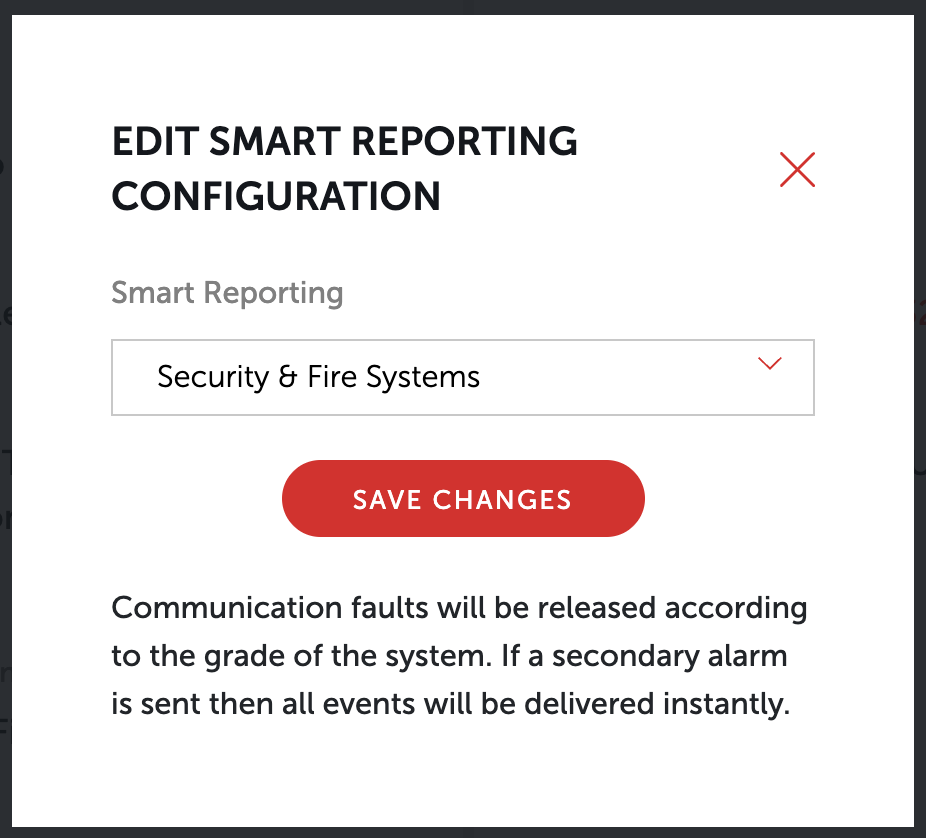
| Security & Fire Systems | Communication faults will be released according to the grade of the system. If a secondary alarm is sent then all events will be delivered instantly. |
| Security: Residential / Business (No Op/Cl) | Communication faults will only be sent between the hours of 9am-6pm – up to a maximum of 96 hours after the event. |
| Security: Open / Close or 96 Hours | Communication faults will be only sent once the system is open – up to a maximum of 96 hours after the event. |
| Security: Business Hours Reporting | Communication faults will only be sent between the hours of 9am-6pm or once the system is open – up to a maximum of 96 hours after the event. |
| Disabled | No additional delays are applied to communication faults. |
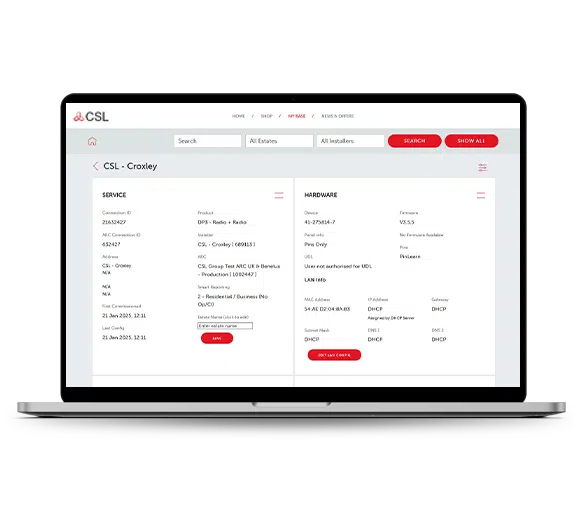
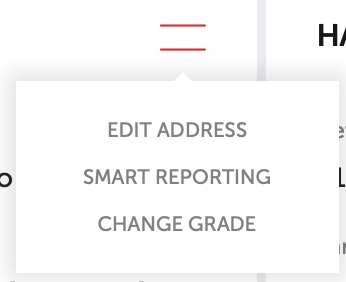
To select the option that is right for your installation, please visit the My Base section of CSL Live or the My Base App. Select the device you wish to adjust and click the menu option circled below:
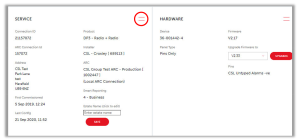
This will offer a drop-down menu, where you need to select ‘SMART REPORTING’:
This will then take you to the section below, where this drop-down menu gives you all 5 options for the configuration of Smart Reporting. For fire enabled sites, only one option is available.
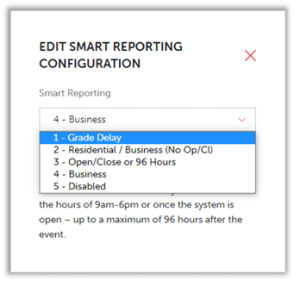
Select the option that is right for you and click on the ‘SAVE CHANGES’ button to complete the process: