
Panel Guide
Texecom Premier – TTL
Panel Connection – TTL
|
Manufacturer |
Texecom |
|
Model |
Premier |
|
Version |
60, 88, 168, 816 |
|
Minimum Panel Firmware |
V1.x V10.x |
|
Cable required? |
Provided with DualCom Pro |
|
Panel Profile |
TEXECOM PREMIER TTL |
|
Panel Bus Connection |
TTL |
|
Technical Notes |
Premier Range has been phased out. Note SIA string special character issue in troubleshooting section. |
Panel Connection Information
|
Manufacturer |
Panel |
Connection |
Cable/Plug On |
Supplied Cables |
|
Texecom |
Premier/Elite |
TTL |
5 Pin (cable removed) |
Green – RTN |
DualCom Pro to Panel Wiring
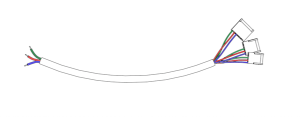
Panel Programming
- Enter “Engineer Mode”
- In Options Menu” – “Enable Communicator” must be ticked > UDL passcode (set in the panel) must match> Dial attempts 1, ring before answer 3
- In “ARC Menu” – “Account number” (site ID) > “SIA Level 2/3” > “Connect Via IP” – ticked > “Send SIA text” – ticked
- In “Radio-Pad and Com Port Options Menu” – Under “Set Com Port 1” to – “WebWayOne module” > Local IP address – 127.0.0.1 >Local IP Port – 50561 > Gateway – 127.0.0.1 > Subnet Mask – 255.255.255.0 > Name/SMG Port – 50561
- Log out of “Engineer Mode” to establish electrical connection
Troubleshooting
- The DualCom Pro should be connected to Com Port 1
- If only Com Port 2 or 3 is available: Make sure the baud rate (modem speed) is set to 19200
- If the Texecom is being programmed with a laptop on Com Port 2, the DualCom Pro is
connected to Com Port 1 the device will be lost from the panel until the Wintex session is closed - Only the alarm format SIA is supported
- Do not use any special characters within Area or Zone descriptions, this causes SIA alarm events to corrupt.
Technical Notes
Line fault is through the serial interface, no extra settings are required in either the panel or the DigiAir/DualCom Pro.
If certain PA restores are not coming through, please ensure that within Area Programming, option 21 (Unarmed Tamper/ Fault Comms) is turned ON.