Introduction
Emizon Site Diagnostics Mobile apps are designed for Android devices. They allow authorised users from registered installation companies to access their TCDs connected to Emizon using an encrypted secure connection.
The apps are designed to help installers provide more efficient customer service, whilst on the move, or simply to provide a method of putting the information needed at the tip of your fingers.
KEY FEATURES
1 – Add Installation
2- Device Overview
3 – GPRS / IP / Extended Diagnostic
4 – GPRS History
5 – Firmware Update
6 – Send test alarm
7 – View alarm logs
8 – Control relays
CONFIGURE
IP / Panel Type / Pin Setup / Relay Mode / Proxy Settings / PSTN Dial Prefix / Internal message alarm format / UDL Panel ID / UDL Message Enable / UDL IP Address / Ethernet Speed
Pre Requisites
SYSTEM REQUIREMENTS
The Android app is designed to run on phones or tablets running Android 3.0 Honeycomb or higher.
ENROLLMENT
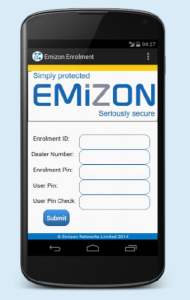
Before using this application, you must first enrol your device. If you have already done this before using another Emizon application you will not have to repeat it.
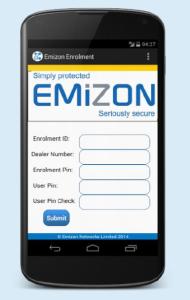
To enrol your device, select the 3 dots button (Android) in the top right of your screen, then select Enrolment.
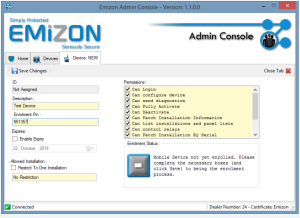
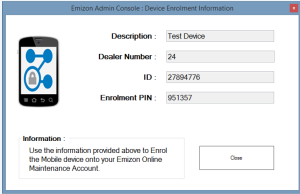
You will need to contact your installation manager for the details to put in here. “User Pin” is set by you, and is what you will use to login to the Apps.
To remove enrolment from your device, go back to the enrolment page and select the “Remove Enrolment” button.
Site List
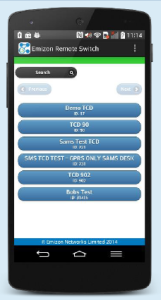
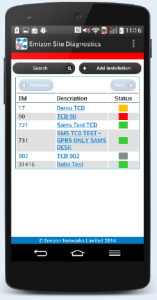
The site list is shown immediately after successfully logging in to the application. It lists up to 10 sites on phones and 20 on tablets along with the EM – installation number, and current status.
Installation lists can be navigated using the Previous and Next buttons, as well as using the search function, by Installation number, Serial Number, or Description.
| Green |
All Clear |
| Amber |
Single Path Fault |
| Red |
Dual Path Fault |
| Grey |
Not Activated |
Add Installation
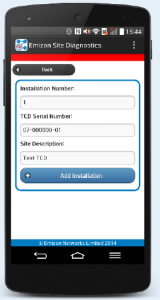
To add an installation, select “Add Installation” from the site list.
You will need to know the installation number and TCD Serial number before proceeding. Site Description is optional, if empty this will default to the installation number.
Overview
The overview function displays information such as the TCD Serial number, description, grade, and the state of the two paths. “Description, Reference, and Location” can all be edited using the Emizon online maintenance windows software.
POLL STATUS
Each path of the TCD will be in one of the following states
| Not Activated |
Installation or path not activated |
| In Contact |
Polling is OK |
| Out Of Contact |
Polling has failed and the path is in line fault |
IP Diagnostic
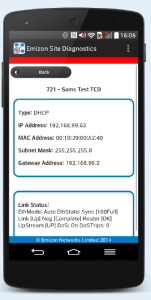
To view an IP diagnostic, select IP from the diagnostic panel.
| Type |
This can be DHCP or Static |
| IP Address |
IP address assigned to TCD, either dynamically or statically |
| MAC Address |
The hardware address of the TCD – also written on the TCD itself. |
| Subnet mask |
The Subnet Mask |
| Gateway Address |
Usually the internet router’s IP address |
| Link Status |
Extra information about the connection, such as whether the TCD can see the router(Router[]) and whether the TCD can see the Emizon servers (Upstream[])
(If upstream is down, check TCP outbound ports 18000 – 18049 are open on the network) |
Extended Diagnostic
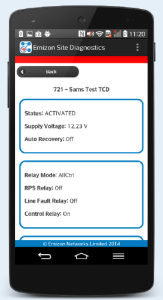
| Status |
TCD activation state |
| Supply Voltage |
Voltage supplied to the TCD |
| Auto Recovery |
Used on old TCDs without LPS to reactivate after power failure |
| Relay Mode |
This can be changed in the configuration |
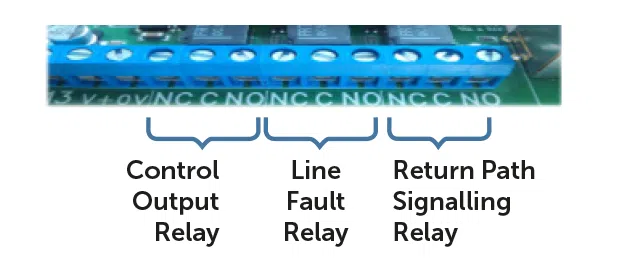
| RPS Relay |
Right Relay |
| Line Fault Relay |
Middle Relay |
| Control Relay |
Left Relay |
| PSTN Dial Prefix |
Number required to access an outside line |
| PSTN Line Voltage |
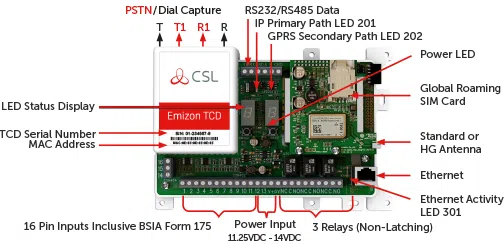
The voltage supplied across T1 and R1 terminals on the TCD |
GPRS Diagnostic
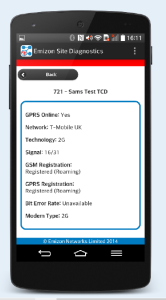
| GPRS Online |
If the TCD is polling successfully |
| Network |
Network provider TCD is connected to |
| Technology |
2G or 3G network |
| Signal |
This should be 12 or above |
| GSM Registration |
Registration on a GSM network (Roaming) indicates SIM can use multiple networks |
| GPRS Registration |
Registration on the GPRS network (Roaming) indicates SIM can use multiple networks |
| Bit Error Rate |
Only older TCDs can report this |
| Modem Type |
States whether it has a 2G or 3G modem |
GPRS HISTORY
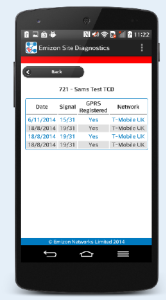
GPRS History shows the date, signal strength, registration state, and network provider for the last 50 GPRS diagnostics taken.
Firmware Update
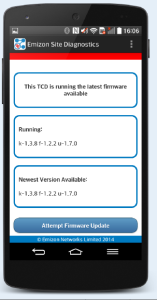
To remotely firmware update a TCD, it must be on test, have LPS and be on “u – 1.5.4” or higher.
If this is not the case, the TCD must first be deactivated, this can be done through your ARC, calling the Emizon helpdesk, or by using Emizon Online maintenance.
Once the request to update is sent, allow around 5 minutes, then revisit the firmware page to ensure it has been done successfully.
Test Alarm
Before sending a test alarm, ensure the system is on test and the TCD is activated.
This feature is useful to ensure both paths are signalling correctly.
Once the test alarm has been requested you will need to check in alarm logs to ensure it has been sent successfully. Depending on the setup of internal alarms, you will need to check for one of the following for both the primary and secondary panels.
|
Fast Format (Primary Path)
|
5555 5555 5555 5155 9 |
| Fast Format (Secondary Path) |
5555 5555 5555 5515 9 |
| Contact ID (Primary Path) |
E601 01 801 |
| Contact ID (Secondary Path) |
E601 02 802 |
| SIA (Primary Path) |
[#000000|Nti10:01:06/pi001/TX801|ATCD IP PRI TEST] |
| SIA (Secondary Path) |
[#000000|Nti10:01:08/pi002/TX802|ATCD GPRS SEC TEST] |
ALARM LOGS
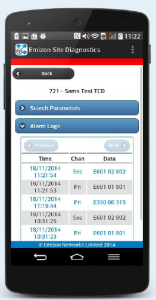
By default, alarm logs will show all alarms from the current day.
You can search by date, and optionally by a search term.
Alarms will be in Fast Format, Contact ID, or SIA depending on your setup.
TCD PIN ALARMS
Each number represents a pin, in order, the final digit is the current status:
| Fast Format |
5554 |
5555 |
5555 |
5555 |
7 |
|
|
PIN 5 |
|
|
STATUS |
PIN VALUES
| 1 |
New Alarm |
| 2 |
Unset |
| 3 |
Restore |
| 4 |
Set |
| 5 |
Normal (no change) |
| 6 |
Outstanding |
STATUS VALUES
| 7 |
Normal |
| 8 |
Low Voltage |
| 9 |
Test |
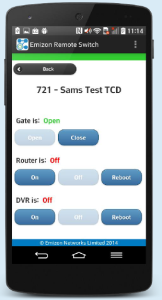
Relay Control
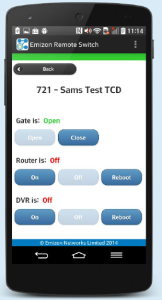
This function only gives access to the relays that are set as “control” This is can be set using the relay configuration function.
Labels for each relay, along with the buttons can be set using Emizon online maintenance windows software.
Configuration
IP CONFIG
| IP Setting |
If DHCP you do not need to enter any more IP settings |
| IP Address |
IP address to be statically assigned to the TCD – Required for Static IP |
| Subnet mask |
The Subnet Mask – Required for Static IP |
| Gateway |
Usually Internet router IP address – Required for Static IP |
| DNS1 & DNS2 |
Optional settings |
PANEL TYPE
If connecting your TCD using external interfaces set to the correct one for the panel you have connected the TCD to. We are constantly supporting new panels, contact Emizon for an up to date list of panel types.
PIN SETUP
| Pos Applied |
Voltage applied to pin will trigger new alarm |
| Pos Removed |
Voltage removed from pin will trigger new alarm |
| Set/unset Pos Applied |
Voltage applied to pin will toggle between set / unset |
| Set/Unset Pos Removed |
Voltage removed from pin will toggle between set / unset |
| Disabled |
Pin will never send any alarms |
| BSIA Form 175 Pos Applied |
Pin 16 only, this disables pins 14 and 15. Triggered when voltage applied to pin |
| BSIA Form 175 Pos Removed |
Pin 16 only, this disables pins 14 and 15. Triggered when voltage removed from pin |
RELAY MODE
| SETTING |
LEFT RELAY |
MIDDLE RELAY |
RIGHT RELAY |
| Normal / Default |
Control |
Line Fail |
Return Path Signalling |
| Dual Line Fail |
Control |
Dual Path Line Fail |
Single Path Line Fail |
| Split Line Fail |
Control |
Primary Path Line Fail |
Secondary Path Line Fail |
| Dual Control |
Control |
Line Fail |
Control |
| Triple Control |
Control |
Control |
Control |
| RPS performance Fail |
Control |
Line Fail |
RPS Performance Fail |
PROXY SETTINGS
By default, the TCD requires a direct connection to the internet (or NAT’ed via a router). However it does support connection via a SOCKs proxy server. It will support SOCKS 4/5 with or without plain text authentication.
PSTN DIAL PREFIX
Some phone lines require a number to be dialled before the phone number to access an “Outside Line”. The TCD accepts a maximum of 8 characters, including only digits, and commas to indicate a pause.
INTERNAL MESSAGE / ALARM FORMAT
By default, the TCD sends input pin alarms in fast format, and internal alarm messages as contact ID, you can change this using this function.
|
PIN ALARMS |
TEST SIGNAL |
OTHER INTERNAL ALARMS |
| Original |
Fast Format |
Fast Format |
Contact ID |
| Hybrid |
Fast Format |
Contact ID |
Contact ID |
| Contact ID |
Contact ID |
Contact ID |
Contact ID |
| SIA |
SIA |
SIA |
SIA |
UDL PANEL ID
When connected to certain panels, the TCD is required to have an ID that identifies itself to the panel. The ID must be an unsigned number.
UDL MESSAGE ENABLED
When a remote servicing request (UDL) is made, the TCD is able to generate an alarm to send to the alarm receiving centre to notify them of this event. This can be turned on or off. Default setting is off.
UDL IP ADDRESS
When doing a call back UDL session to the installers PC, there are some panels that cannot indicate to the TCD what the IP address should be. This setting allows the TCD to use this IP address to connect back to the installers PC and start a UDL session.
ETHERNET SPEED
The TCDs Ethernet interface can support speeds of up to 100MHz Full Duplex. Normally this setting is not needed as by default the interface is set to auto-negotiate with the switch to determine its correct speed.
PROXY SETTINGS
By default, the TCD requires a direct connection to the internet (or NAT’ed via a router). However it does support connection via a SOCKs proxy server. It will support SOCKS 4/5 with or without plain text authentication.
| IF YOUR TCD IS ON OLD FIRMWARE YOU MAY NOT BE ABLE TO VIEW OR SET SOME OF THESE CONFIGURATIONS, A WARNING MESSAGE WILL NOTIFY YOU OF THIS. |
CONTACT ID
This format is split into 4 sections
| Type |
Code |
Group |
Area |
| E |
140 |
00 |
902 |
Example pin 1 alarm – E140 00 901
Example pin 2 alarm below – E140 00 902
SIA
A format that contains information such as time and date and a textual description of the alarm Pin 1 alarm example:
[#000000|Nti14:36:39/UA901|ATCD INPUT 1 ALARM]
TCD GENERATED ALARMS
| Ext. Panel Conn. Failure |
E350 00 315 |
|
| Ext. Panel Conn. Restored |
R350 00 315 |
|
|
|
|
| TCD Configuration Changed |
E306 00 830 |
Doesn’t Reset |
| TCD Restarted |
E305 00 831 |
Doesn’t Reset |
| Failure to Communicate |
E354 00 832 |
Doesn’t Reset |
|
|
|
| Supply Voltage Low |
E302 00 833 |
|
| Supply Voltage Restored |
R302 00 833 |
|
|
|
|
| Self-Test Failure |
E307 00 834 |
|
| Self-Test Restored |
R307 00 834 |
|
Settings
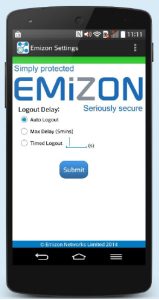
The settings menu can be accessed usually, from the top right corner of the app, (3 dots on Android – sometimes bottom right 3 lines)
From here you can set how often / quickly you want to be automatically logged out after closing the app.
| Auto Logout |
Will log you out every time the app is closed |
| Max Logout |
Maximum allowed is 5 Minutes |
| Timed Logout |
In seconds from 0 – 300 |